















Zynga's Latest Featured Games
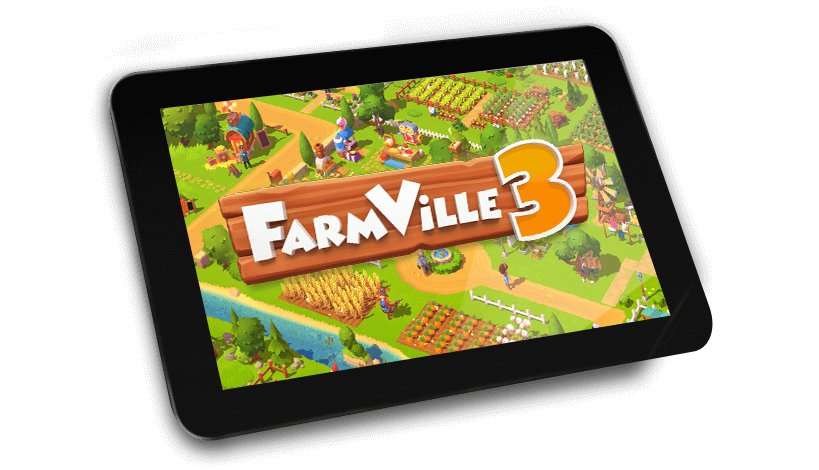
Leave it all behind and escape to the farm, where the air is fresh and the people are friendly. Experience nature at its finest, harvesting bountiful crops and raising hundreds of adorable animals. Take a break from the world and enjoy life at a different pace. Available on Android and iOS.
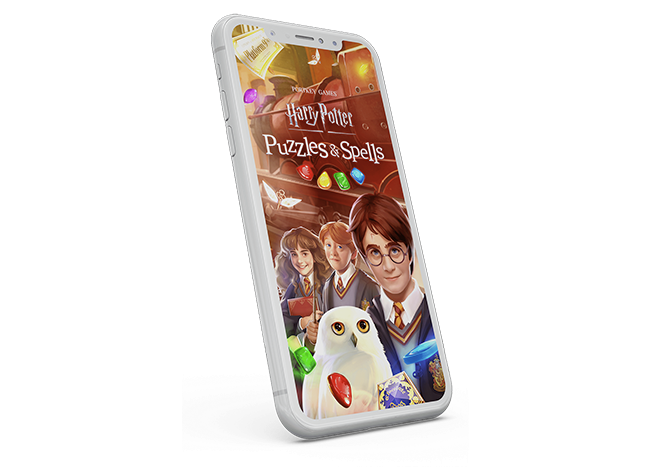
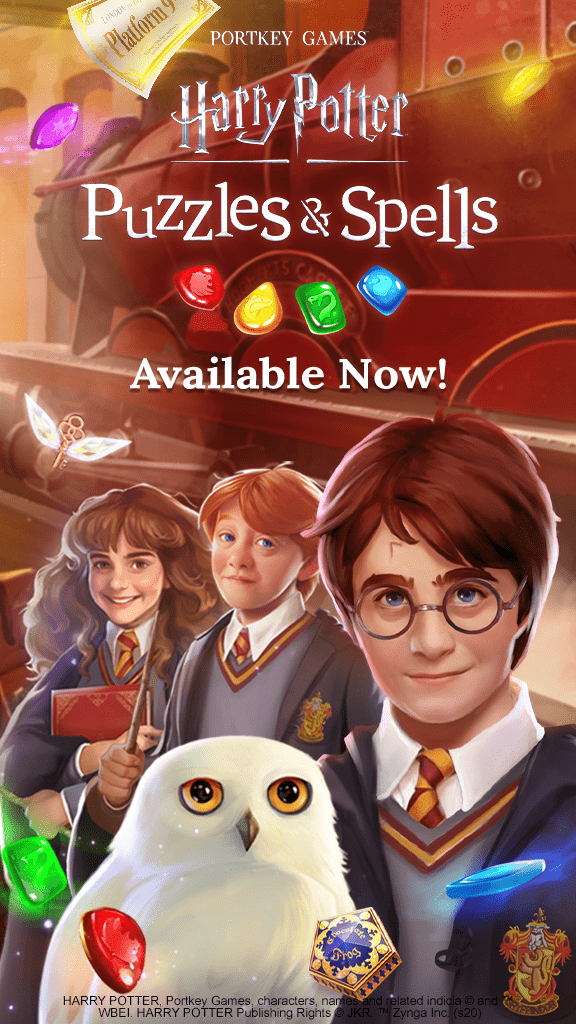
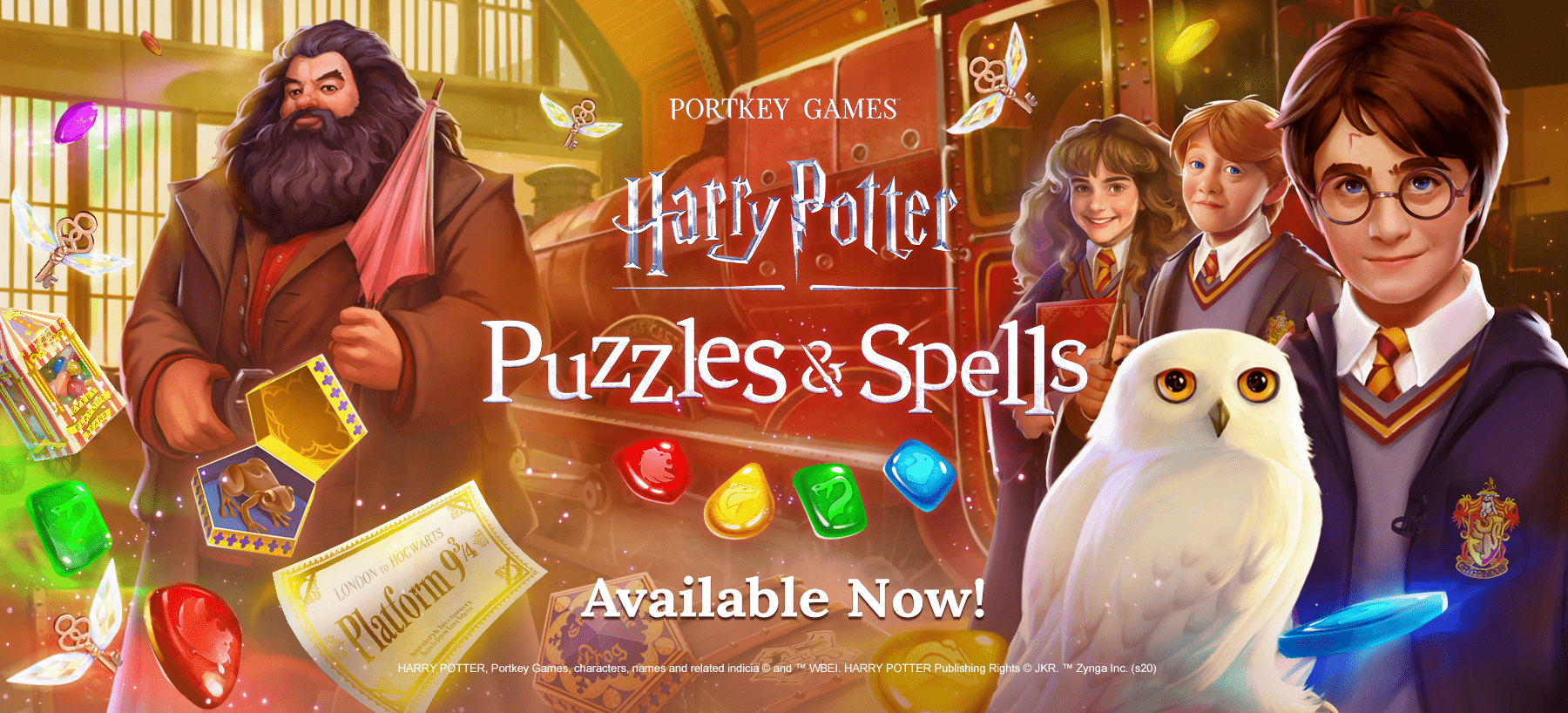
Represent your Hogwarts house and celebrate the magic and enchantment of Harry Potter like never before! Prepare to master spells, outsmart challenges, and explore the wonders of the Wizarding World while becoming enchanted by the most marvelous matching puzzles ever found on your mobile device!
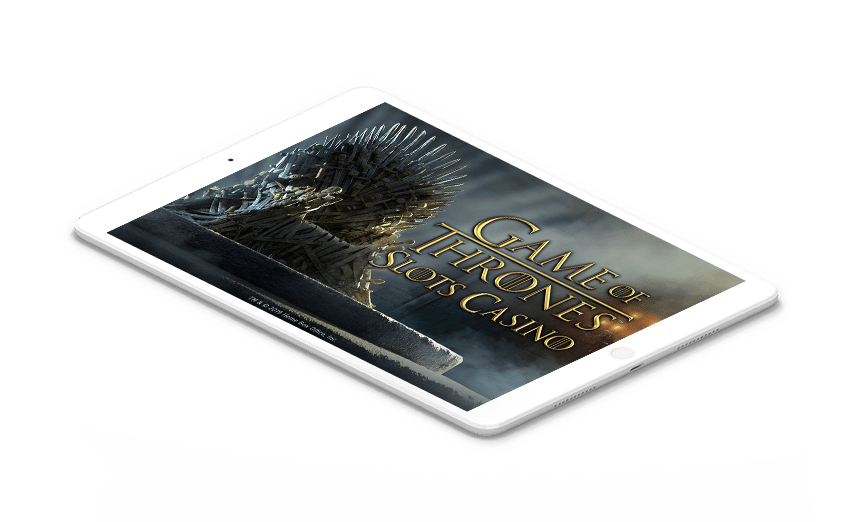

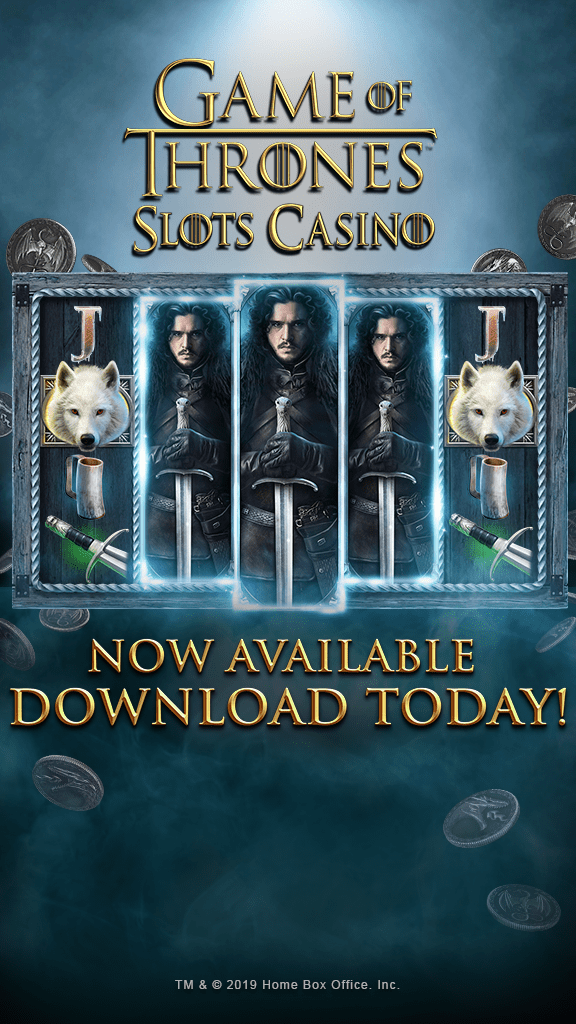
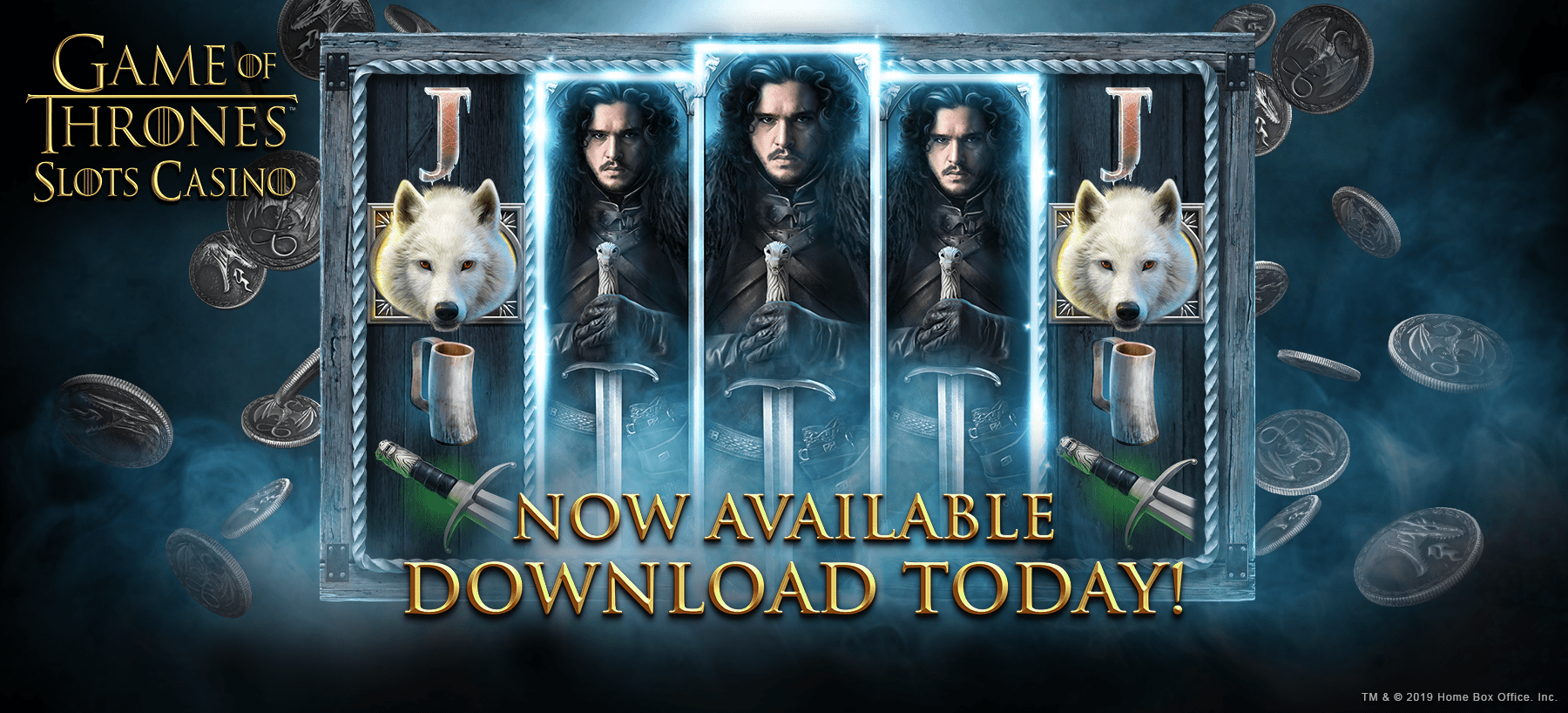
Are you ready to spin the slot machines on your way to the ultimate glory: The Iron Throne? Test your skill in one of the most immersive, free slot machine games to come out of the Seven Kingdoms.
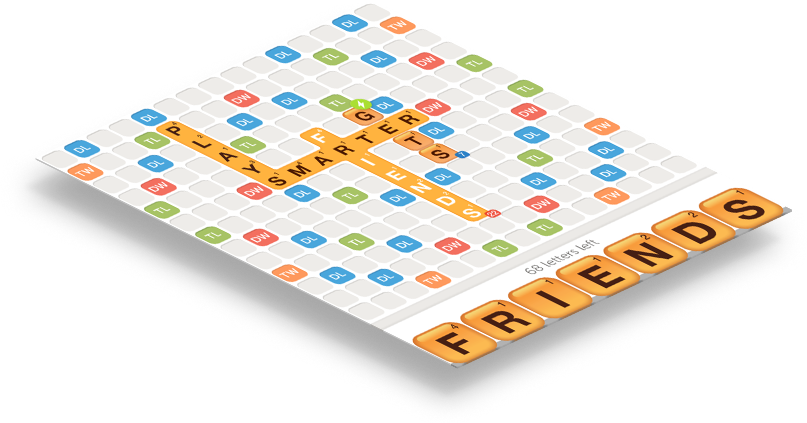

Attention Wordies! We’re excited to announce the launch of Words With Friends 2, a next-generation take on the world’s most popular mobile word game today on the App Store for iPhone and iPad and on Google Play for Android devices.

Join Zynga Poker for some fun with your friends, or enjoy a little friendly competition against millions of other users, 24/7, 365 days a year.


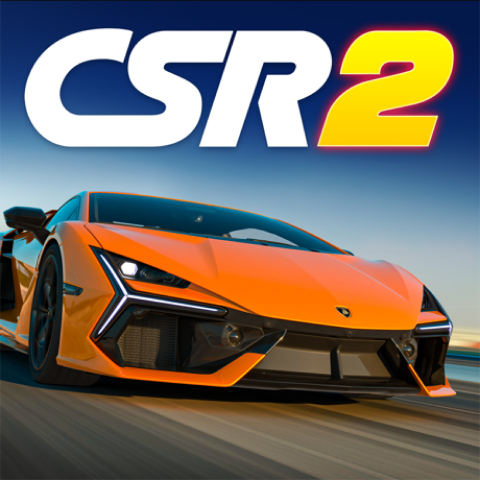
Setting a new standard in visuals, CSR 2 delivers hyper-real drag racing to the palms of your hands. Compete against live players across the world with your custom built supercars including LaFerrari, McLaren P1™, Koenigsegg One:1 and many more.
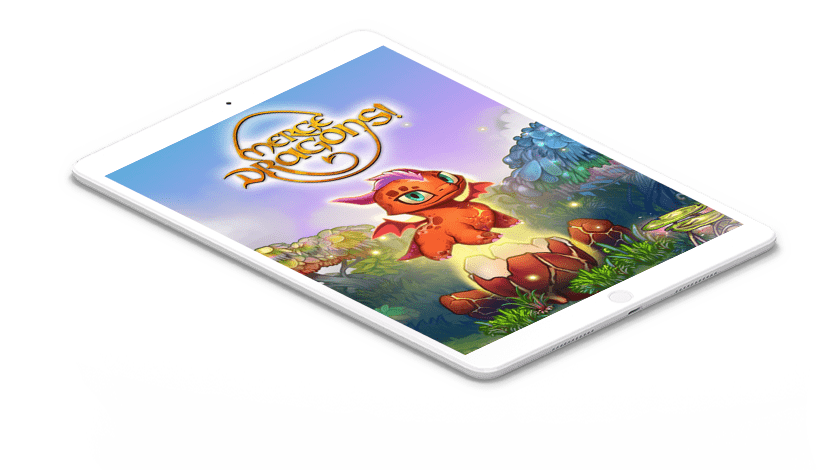
Welcome to a land where you can merge all sorts of things in the world to evolve them into even more wondrous things!

Zynga is a global leader in interactive entertainment with a mission to connect the world through games and a wholly-owned subsidiary of Take-Two Interactive Software, Inc. With massive global reach in more than 175 countries and regions, Zynga has a diverse portfolio of popular game franchises that have been downloaded more than four billion times on mobile including CSR Racing™, Empires & Puzzles™, FarmVille™, Golf Rival™, Hair Challenge™, Harry Potter: Puzzles & Spells™, High Heels!™, Merge Dragons!™, Merge Magic!™, Toon Blast™, Toy Blast™, Words With Friends™ and Zynga Poker™. With Chartboost, a leading mobile advertising and monetization platform, Zynga is an industry-leading next-generation platform with the ability to optimize programmatic advertising and yields at scale. Founded in 2007, Zynga is headquartered in California with locations in North America, Europe and Asia. For more information, visit www.zynga.com or follow Zynga on Twitter, Instagram, Facebook or the Zynga blog.